
Reading Profiles
Reading profiles are reusable reader presets. They define how the reader should open before you start turning pages.
Use them when different kinds of content need different viewing behavior. A magazine may work best as a two-page spread with a darker background, while a manual may be easier to read as a single page with a higher zoom level.
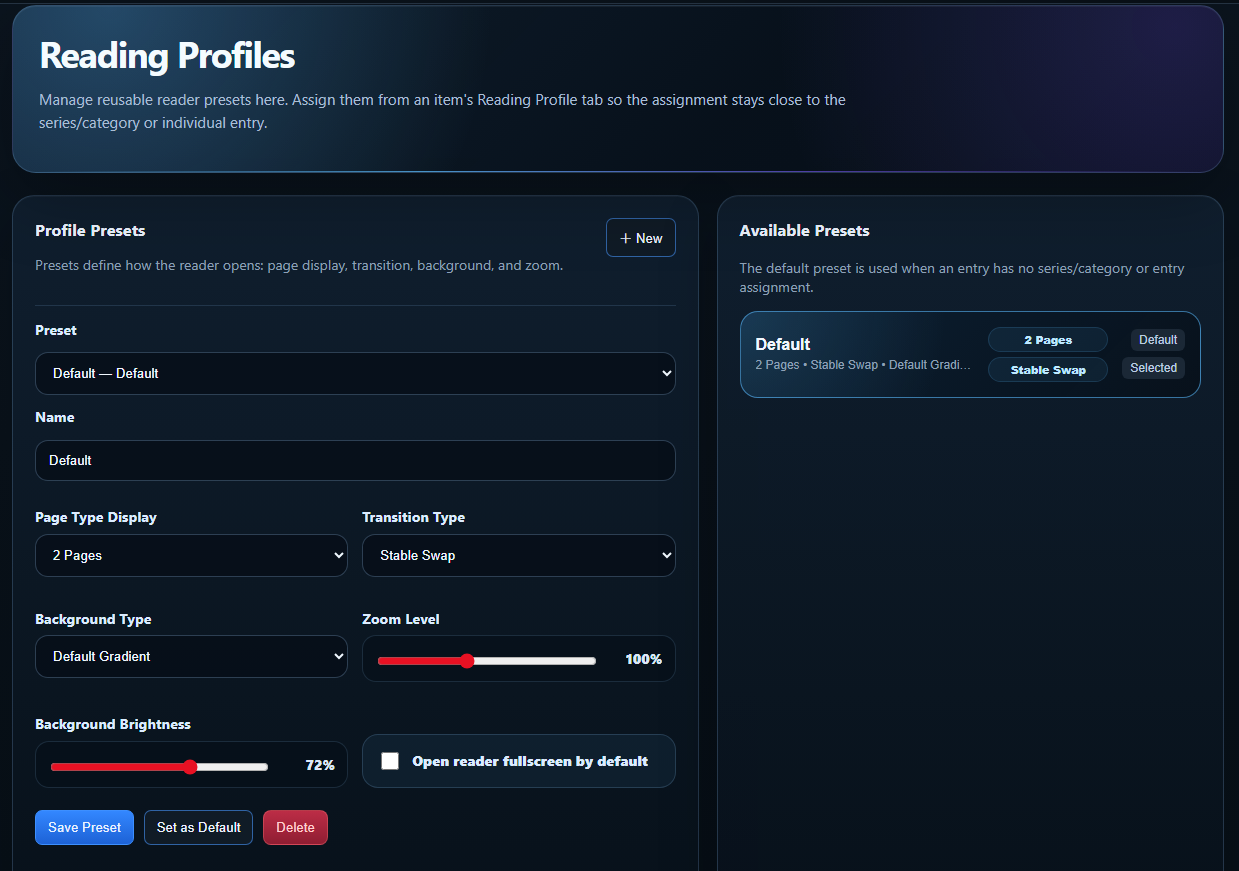
What reading profiles control
Section titled “What reading profiles control”A reading profile can define these reader defaults:
Page Type Display
Controls how pages are shown when the reader opens. Common uses are single-page reading for manuals and two-page display for guides or magazines.
Transition Type
Controls how page changes behave. A stable transition is best when you want predictable page swapping without unnecessary movement.
Background Type
Sets the reader background style. Use this to match the type of material or to reduce eye strain.
Zoom Level
Sets the starting zoom level. This is useful when a document type consistently opens too small or too large.
Background Brightness
Controls the brightness of the reader background. Lower brightness can make bright scans and white pages easier to read.
Open Reader Fullscreen by Default
When enabled, matching content can open directly into a more focused reading view.
Where profiles apply
Section titled “Where profiles apply”Reading profiles are meant to be assigned close to the content they affect. The practical hierarchy is:
- Individual entry — the most specific assignment. Use this when one document needs unique behavior.
- Series, collection, or category assignment — use this when a group of related documents should open the same way.
- Default profile — used when no more specific assignment exists.
The safest mental model is: specific beats general. If a document has its own profile assignment, that should win over a broader group/default behavior.
Example configurations
Section titled “Example configurations”Manual profile
Single-page display, stable transition, moderate zoom, neutral background. Good for instruction booklets and quick reference manuals.
Strategy guide profile
Two-page or adaptive two-page display, stable transition, lower brightness. Good for walkthroughs and large-format guide scans.
Magazine profile
Two-page display, spread-friendly alignment, darker background, and consistent zoom. Good for magazine-style layouts and cover-to-cover reading.
Good defaults
Section titled “Good defaults”Start with one clean Default profile. Then create additional profiles only when you notice a repeatable pattern, such as magazines always needing a two-page layout or manuals always needing a higher zoom.
Too many profiles can become harder to manage than the problem they solve.