
Initial Sign On - Getting Started
The first time GuideVault opens in a fresh browser profile, you will be prompted to create a local login profile.
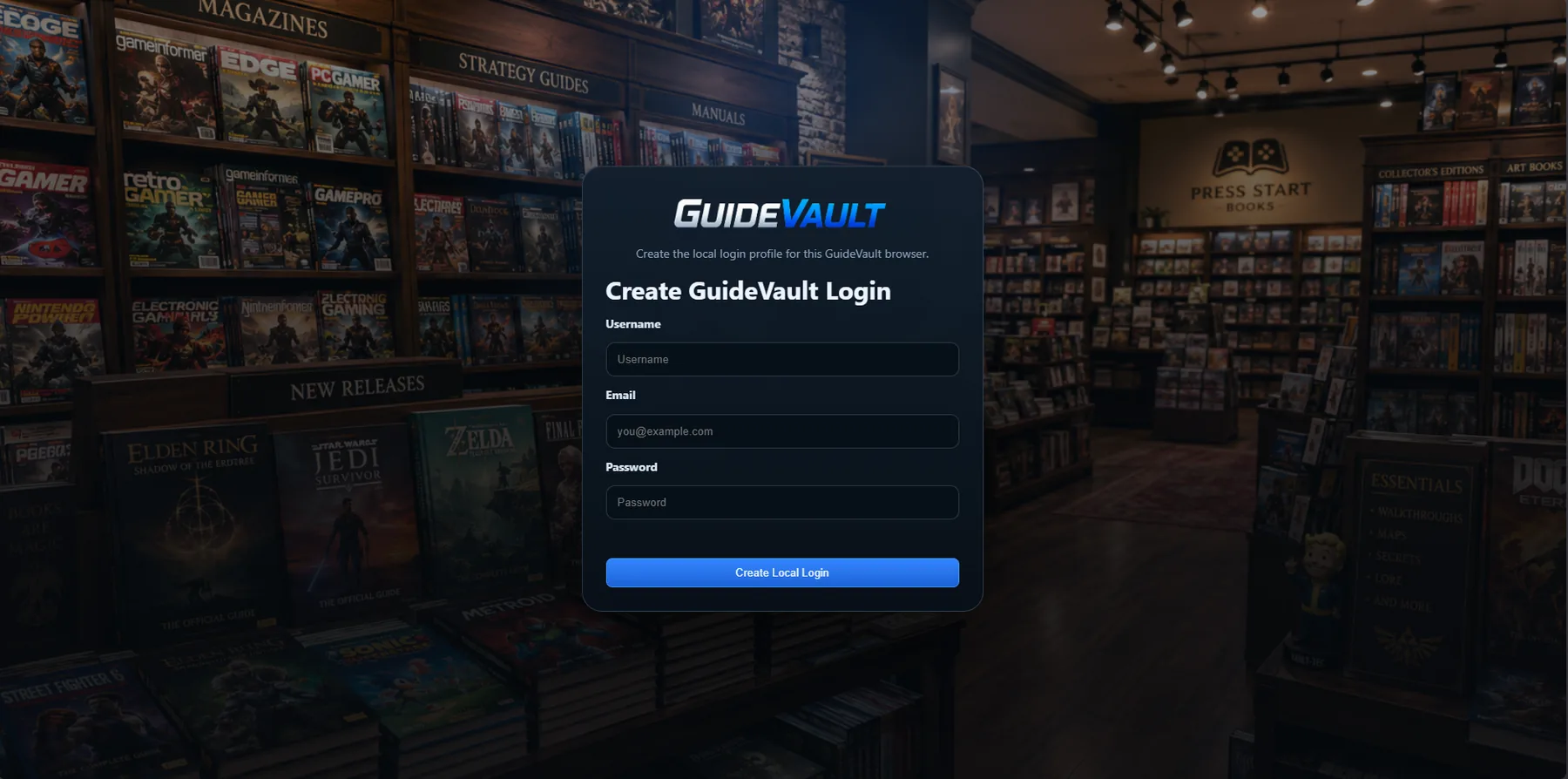
Create the first login
Section titled “Create the first login”Enter a username, email, and password, then select Create Local Login.
This first profile is typically treated as the starting admin-style profile for the local app experience. GuideVault is not presenting this as a hosted cloud account system here; it is creating the login profile used by this GuideVault browser/app setup.
After sign-on: the Home page
Section titled “After sign-on: the Home page”After creating the login, GuideVault opens the main Home page.
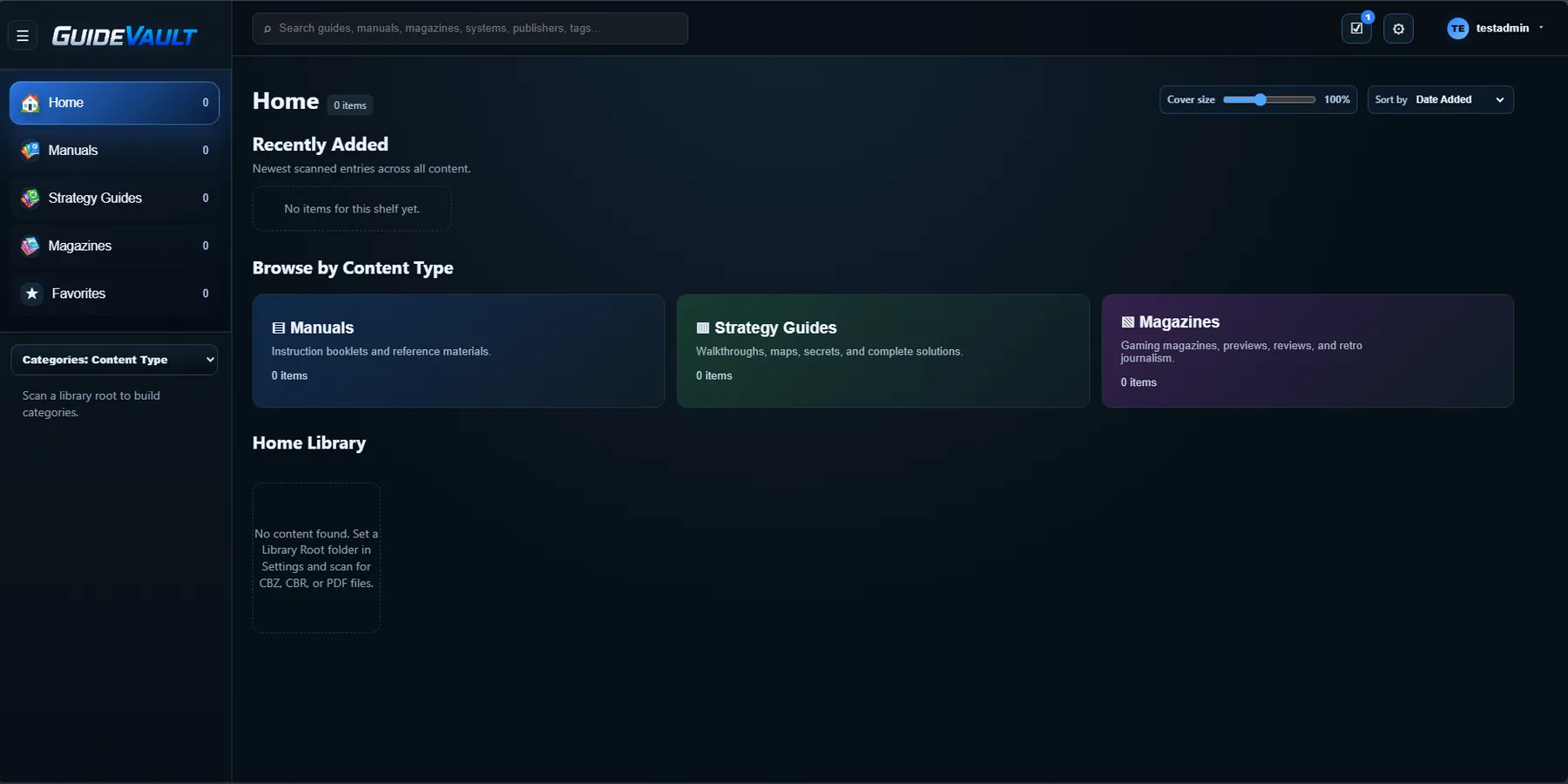
What you should see
Section titled “What you should see”A fresh install may show zero items across the library areas. That is expected until you configure folders and scan content.
The Home page includes:
- Left navigation for Home, Manuals, Strategy Guides, Magazines, and Favorites.
- Content counts next to each library section.
- Search across guides, manuals, magazines, systems, publishers, and tags.
- Cover size control for changing how large library covers appear.
- Sort controls such as Date Added.
- Recently Added for newly scanned items.
- Browse by Content Type cards for Manuals, Strategy Guides, and Magazines.
- Home Library for the current library/root view.
Why the page may be empty
Section titled “Why the page may be empty”If the Home page says no content was found, GuideVault has not yet found files in the configured library root.