
General
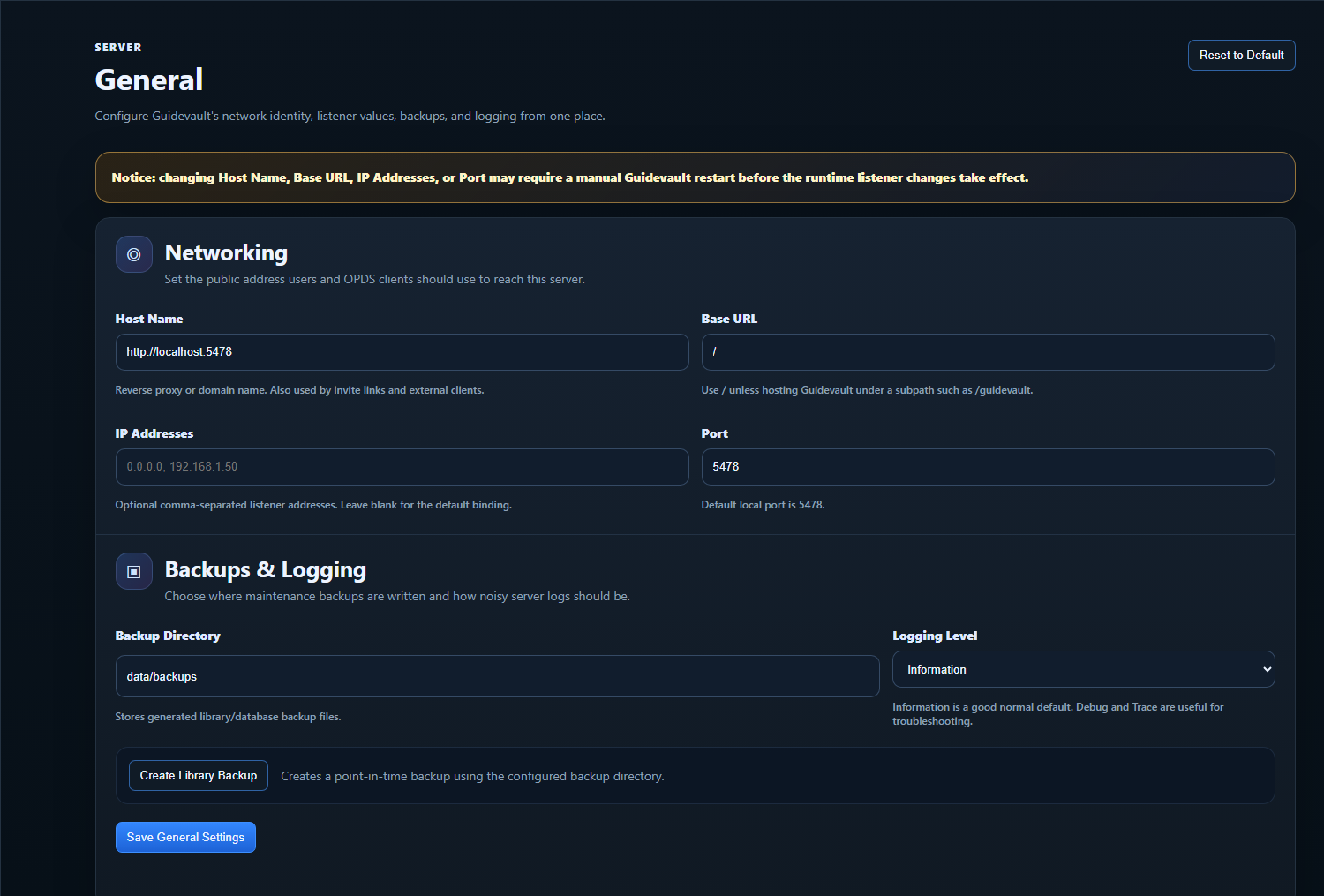
The General server page controls GuideVault’s network identity, listener settings, backup location, and logging behavior. These settings matter most when GuideVault is used beyond the local browser, especially with OPDS clients, reverse proxies, LAN devices, or a public-facing deployment.
Restart requirement
Section titled “Restart requirement”Networking and listener settings should be treated as restart-required settings. After changing the host name, base URL, IP address binding, or port, save the setting and restart the GuideVault container or server process before assuming the runtime listener has changed.
This is especially important in Docker. If the container is internally listening on 5478, changing the external Docker port mapping is usually done in the Compose file, not only inside the web UI.
Networking settings
Section titled “Networking settings”Host Name
The main address GuideVault advertises to users and clients. For local-only testing, this can be http://localhost:5478. For LAN use, this can be an IP-based address such as http://192.168.1.50:5478. For reverse proxy or public use, this is usually the public hostname, such as https://guidevault.example.com.
Base URL
The path prefix GuideVault should assume when it is hosted under a subpath. Use / for a normal root-hosted install. Use a value like /guidevault only when a reverse proxy places GuideVault under that path.
IP Addresses
Optional comma-separated listener bindings. Leave this blank for the default binding. Use 0.0.0.0 when the app should listen on all container or host interfaces. Use a specific IP address when GuideVault should bind only to one network interface.
Port
The port GuideVault uses for its listener. The default local port is 5478. If you change this value, restart the server and make sure Docker, firewall rules, and reverse proxy configuration all agree with the new port.
Local, LAN, reverse proxy, and OPDS usage
Section titled “Local, LAN, reverse proxy, and OPDS usage”For a single-machine test install, localhost is usually enough. For use from another computer, tablet, phone, or OPDS reader on your network, use a LAN IP address or DNS name that those devices can reach.
For a public service, do not rely on the raw container address as the long-term entry point. Use a reverse proxy or tunnel in front of GuideVault, then set the Host Name to the public URL users and clients should use. This helps generated links, OPDS clients, and external integrations resolve the correct address.
OPDS clients are especially sensitive to this. If the advertised host name points to localhost, the OPDS client will try to reach itself, not the GuideVault server. Use a LAN address, reverse proxy name, or public hostname that the OPDS device can actually access.
Docker port mapping note
Section titled “Docker port mapping note”The default GuideVault container listener is commonly exposed as 5478. If you want a second temporary instance on host port 5479, map the host port to the internal GuideVault port:
ports: - "5479:5478"Do not assume the container is listening internally on 5479 unless the application image has been changed to do that.
Backups & Logging
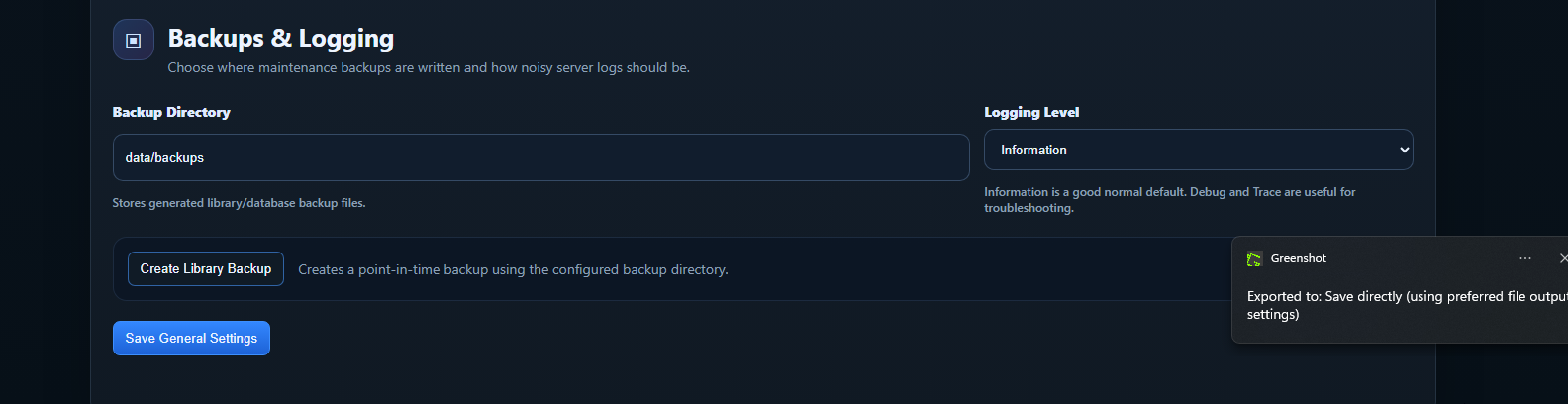
Section titled “Backups & Logging”The Backups & Logging section is for maintenance. It controls the backup output directory, provides a manual one-time backup button, and controls server log verbosity.
Backup Directory
Section titled “Backup Directory”The backup directory is where GuideVault writes generated backup files. In a Docker install, make sure this path is inside a persistent mounted volume. A path like data/backups is only useful if the underlying data location is mapped to persistent storage.
Create Library Backup
Section titled “Create Library Backup”The Create Library Backup button creates a point-in-time backup using the configured backup directory. Treat this as a manual backup action unless a separate scheduled backup system is explicitly configured elsewhere.
A backup should be treated as a backup of GuideVault-maintained application data, such as the library database/index, metadata state, configuration/state files, and other files GuideVault depends on to rebuild its view of the library. Do not assume this duplicates every source PDF, CBZ, CBR, manual, strategy guide, or magazine file from your mounted library folders unless the backup implementation is specifically documented to include those source files.
The safest recovery assumption is:
- keep your original document library backed up separately;
- keep the GuideVault data/config volume backed up;
- use Create Library Backup before major upgrades, metadata changes, or migration work;
- store backups outside the container filesystem when possible.
Logging levels
Section titled “Logging levels”Logging controls how much diagnostic output GuideVault writes. Higher-detail logs are useful for troubleshooting but can be noisier and may consume more storage over time.
Trace
The most detailed logging level. Use only for short troubleshooting sessions when you need very granular behavior. It can produce a large amount of output.
Debug
Detailed diagnostic information useful while investigating bugs, startup behavior, scans, or integration issues. Usually too noisy for normal long-term use.
Information
A good normal default. Records regular application events such as startup, high-level activity, and expected operational messages.
Warning
Records unexpected but recoverable problems. Use this when you want quieter logs but still want to know when something may need attention.
Error
Records failed operations that likely need investigation. Useful when you only care about problems and not routine activity.
Critical
Records only severe failures that may prevent GuideVault from running correctly or serving users.
None
Disables application logging. This is not recommended unless you have another way to observe failures, because it makes troubleshooting much harder.
Practical recommendations
Section titled “Practical recommendations”For a normal install, keep logging at Information. Temporarily increase to Debug or Trace only while investigating a specific issue, then return it to Information afterward.
Before changing network identity, reverse proxy settings, port values, or listener bindings, create a backup and record the working values. Save the settings, restart GuideVault, and then test from the same client type that will actually use the service, such as a browser, OPDS reader, LaunchBox connector, or Home Assistant integration.