
Devices
The Devices pages help you understand what clients have connected to the GuideVault server. This includes browser sessions, web app sessions, OPDS clients, send-to-email devices, and other recent client connections.
There are two related areas:
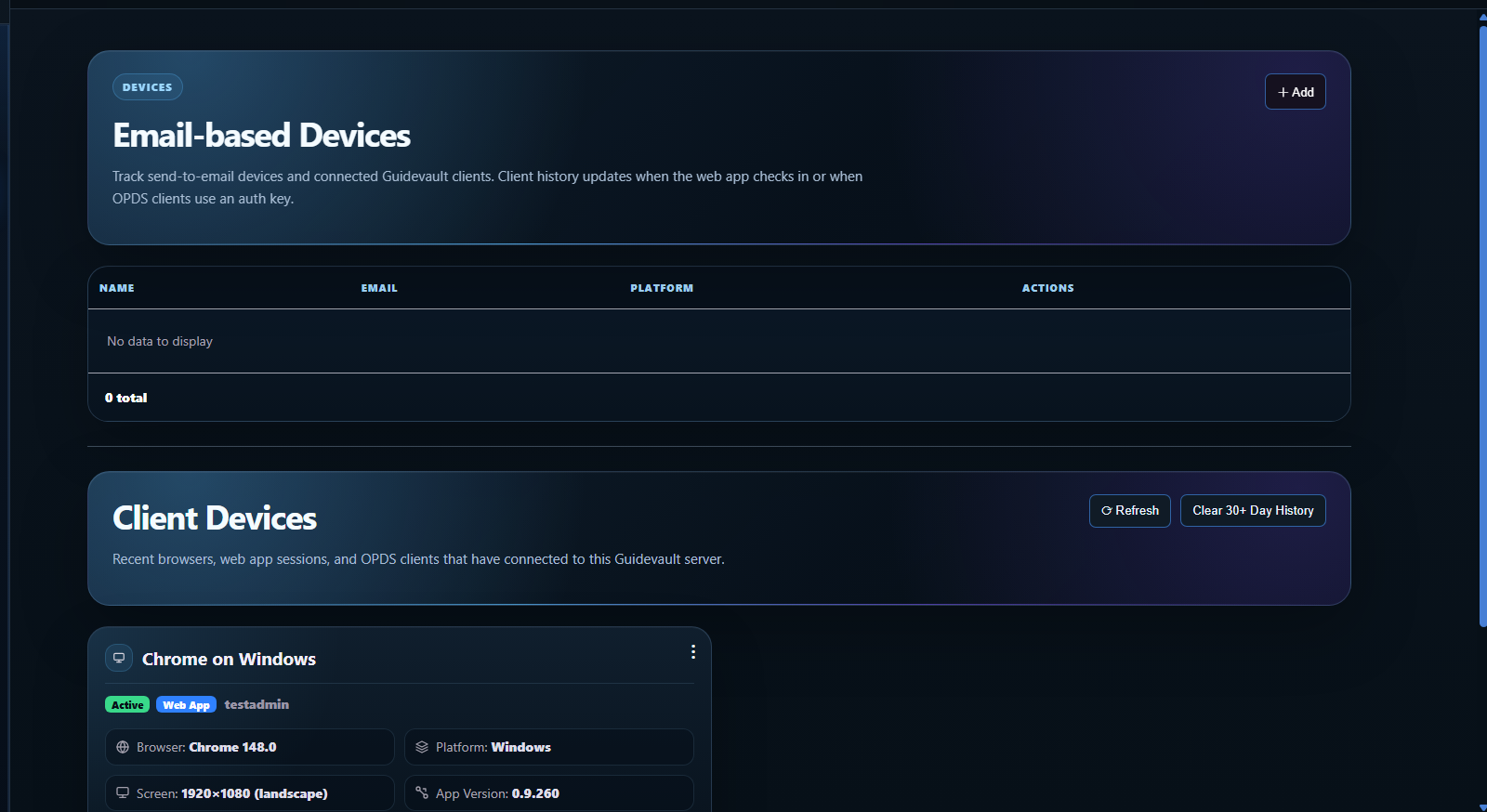
- Email-based Devices — configured targets used for sending content by email when email features are set up.
- Client Devices — recent browsers, web app sessions, OPDS clients, and other clients seen by the server.
Email-based devices
Section titled “Email-based devices”Email-based devices are used when GuideVault has email sending configured and you want a known target device or account available for send-to-email workflows.
Typical fields include:
Name
A friendly name for the device or target.
The destination email address used by the send-to-email workflow.
Platform
A general device/platform label, such as Windows, Linux, mobile, tablet, or e-reader-style target.
Actions
Controls for managing the configured device entry.
If email methods are not configured, this section may be empty or only useful as preparation for future email workflows.
Client devices
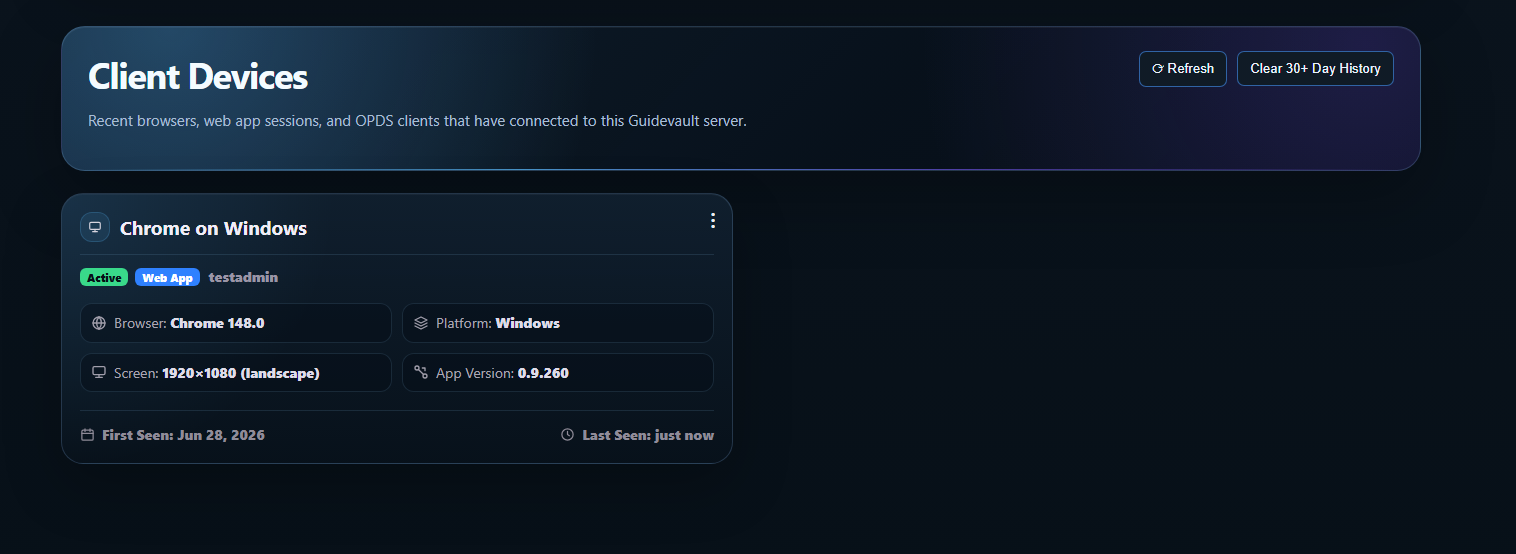
Section titled “Client devices”Client Devices shows recent connections to the GuideVault server. This is useful for checking which browsers, devices, OPDS clients, or app sessions have connected.
What client device fields mean
Section titled “What client device fields mean”Generated device name
GuideVault gives each client a readable name, such as Chrome on Windows. This is meant to identify the connection without requiring you to manually name every browser.
Status
Shows whether a device is currently considered active or inactive. Use this together with Last Seen to understand how fresh the connection is.
Client type
Indicates the kind of client, such as Web App, OPDS client, browser session, or another server connection type.
User/profile
Shows the local GuideVault user associated with the connection when available.
Browser
The browser and browser version reported by the client, such as Chrome 148.0.
Platform
The operating system or device platform, such as Windows, Linux, macOS, Android, iOS, or another client-reported platform.
Screen
The reported screen resolution and orientation. This can help identify which physical device created the connection.
App Version
The GuideVault app/client version reported by that device.
First Seen
The first time GuideVault recorded this client.
Last Seen
The most recent time this client checked in. This is the most important field when deciding whether a connection is stale.
Active vs inactive devices
Section titled “Active vs inactive devices”A device is considered active when it has checked in recently enough for GuideVault to treat it as a live or current connection. If the client stops checking in, it will eventually become inactive.
The exact active timeout depends on the current GuideVault implementation. Until that timeout is documented directly in the app, use Last Seen as the source of truth. If a device has not checked in recently, assume it is no longer actively connected even if it remains in the recent history list.
30-day history
Section titled “30-day history”The Client Devices area is intended to show recent connections, including active and inactive clients from the recent history window.
The Clear 30+ Day History action removes older device history. This is useful when the list has stale browsers, old OPDS clients, test devices, or temporary sessions you no longer care about.
OPDS and other clients
Section titled “OPDS and other clients”GuideVault can also track OPDS clients and other recent connections to the server. These may not look exactly like a browser session, but the same idea applies: GuideVault records what connected, what platform/client information was reported, and when it was first and last seen.
When this page is useful
Section titled “When this page is useful”Use Devices when you need to:
- confirm that a browser or OPDS client is reaching the server
- see whether a client is active or stale
- identify which platform or screen size a connection came from
- verify app/client version after an update
- clean up old client history
- manage email-based sending targets